
TALENT: How do I apply to a casting role?
This guide is designed for Talent to explain how the submission process works, what to do when you see specific warnings, and how to stay on top of your inbox. We want to make sure you feel confident every time you hit that submit button.
How do I apply (submit) to a casting role?
Submitting to a role on FastCast is straightforward and designed to get your profile in front of casting directors quickly. Please keep in mind that you must have a Premium subscription to submit to roles.
Browse the role feed from the Home Feed of the app.

Tap View Details to see its full details and requirements.
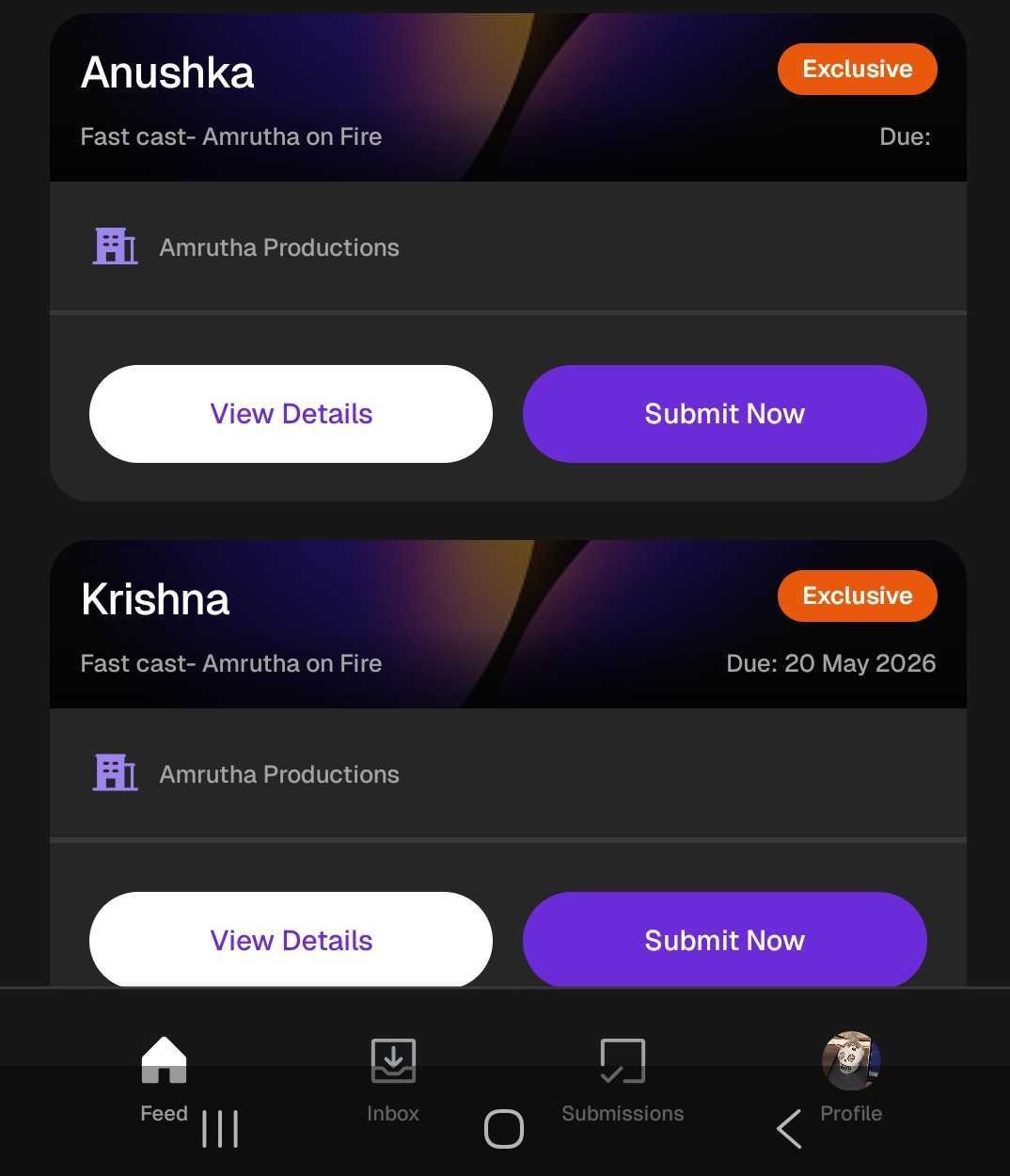
Tap Submit Now to begin the submission process.
Upload your Audition Tape: You can upload 1 video (maximum 1GB).
Write a short note (up to 500 characters) to introduce yourself or highlight relevant experience.
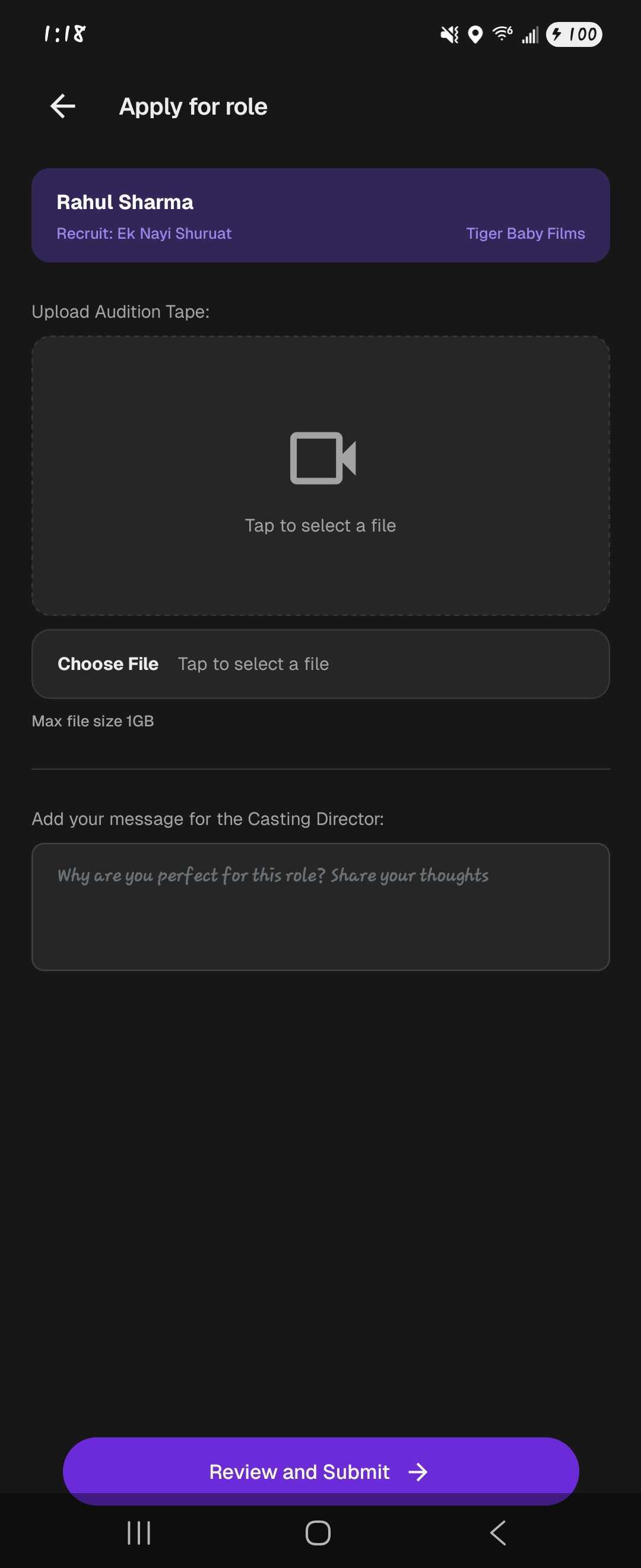
Review a preview of your submission, including your profile details and attached media.
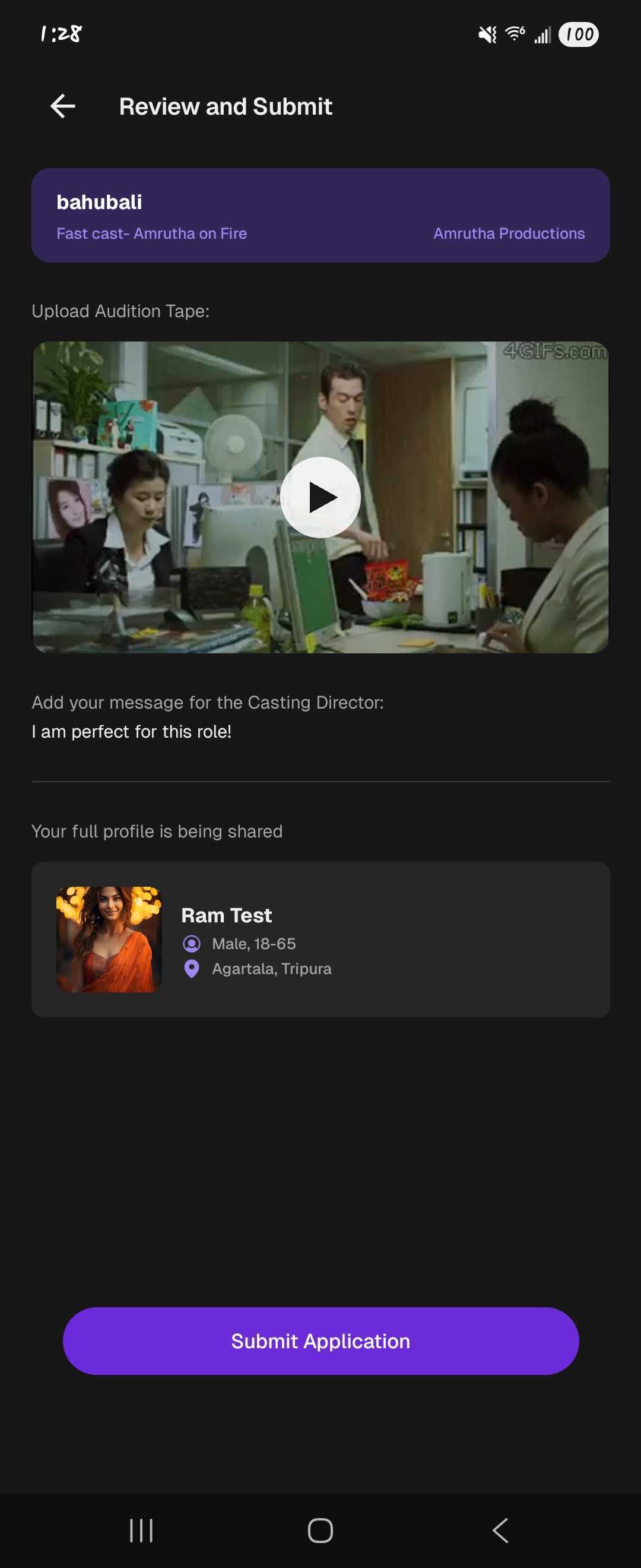
Choose Submit Application when ready. You will receive a confirmation once the process is complete.
Note: If your profile details do not match the specific role requirements, you may see a mismatch warning before submitting. You can still proceed with your submission after reviewing the warning.
Important: Please double-check your work! You cannot edit your submission once it has been completed. And you are not able to submit to the same role twice.
Why am I seeing a mismatch warning before I submit?
Before you confirm your submission, FastCast does a quick check to see how your profile aligns with the requirements of the role. If something does not quite line up, a warning will appear for the following reasons:
Age range — Your playable age range falls outside the role's specified age requirement.
Location — Your registered city does not match the location requirement for the role.
Skills — Your listed skills do not include the specific skills required by the role.
Language — Your listed languages do not match the language requirement of the role.
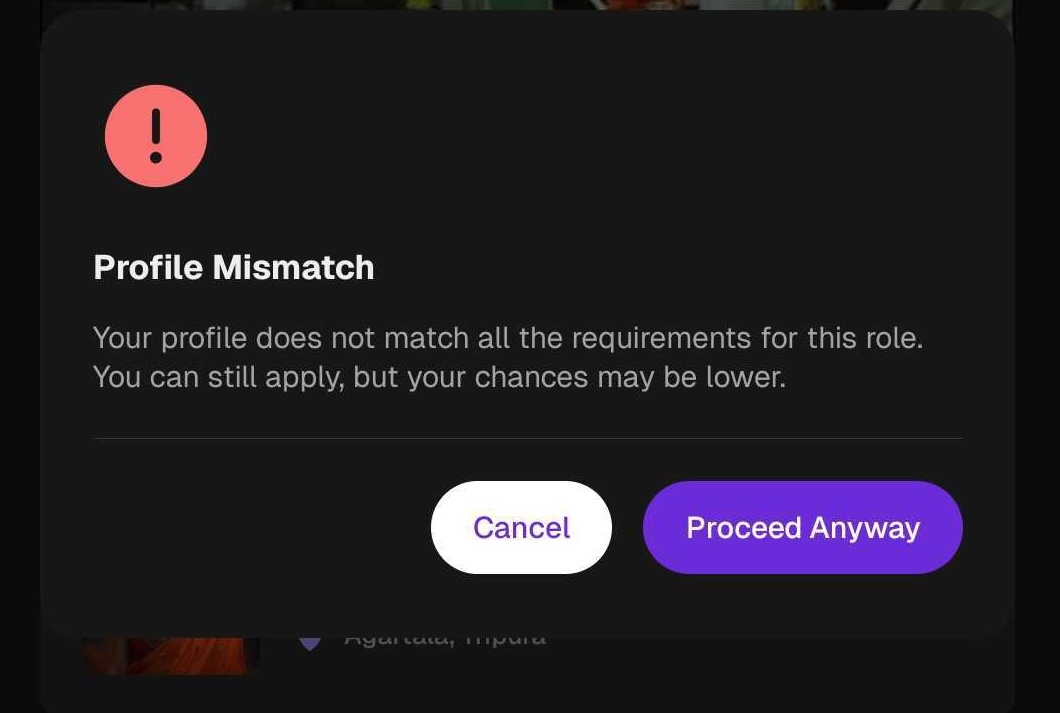
Important: You can still choose to submit after the warning is shown, but to avoid future mismatches, it is a good idea to keep your profile information as up-to-date as possible.
Where can I view all the roles I have submitted to?
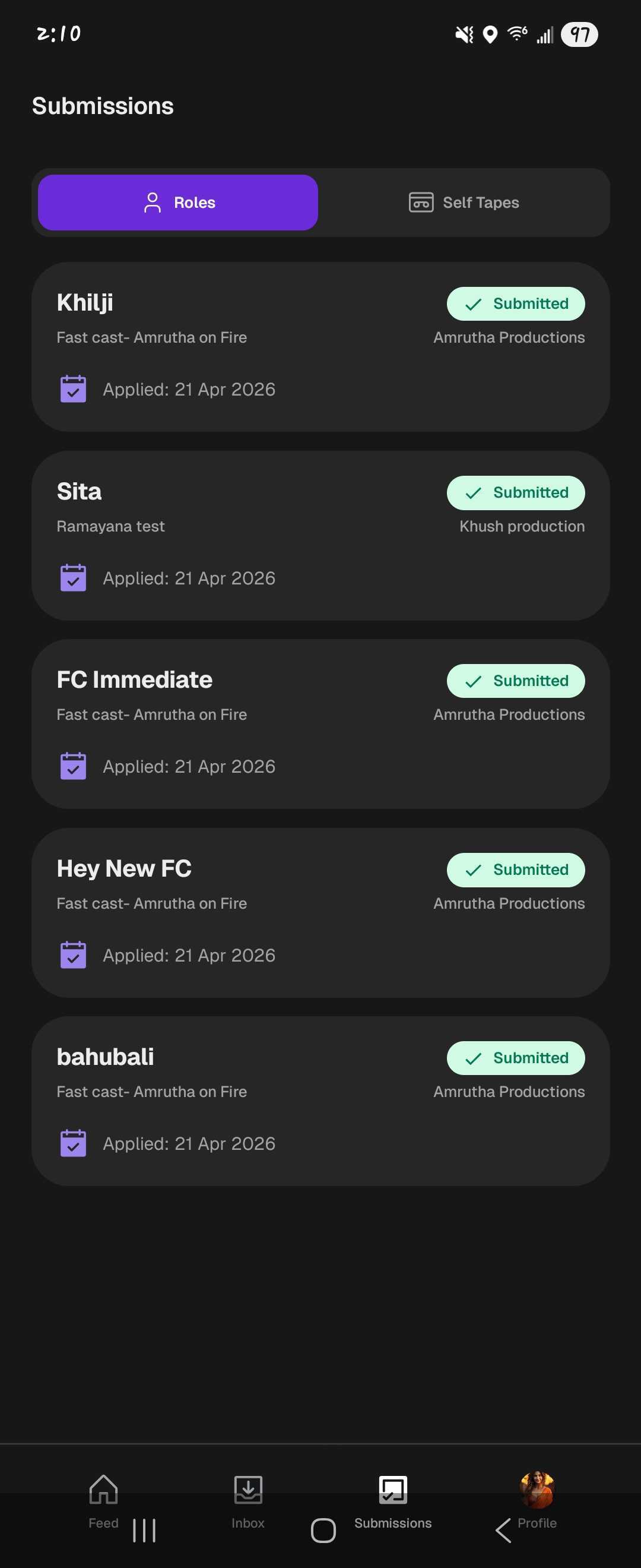
The Submissions tab makes it easy to keep track of your active applications, with all of your submitted roles stored in one handy place.
Open the FastCast app.
Navigate to the Submissions tab.

Review your running history of all past and current submissions.
Can I find roles using filters and searching?
Yes, at the top of your Home Feed page, you'll notice the Search and Filters icons.
To Search for specific roles types or for roles you may have seen previously, select the Search Icon

On the following page, enter any key words, names or skills to generate results for roles or projects you're looking for.
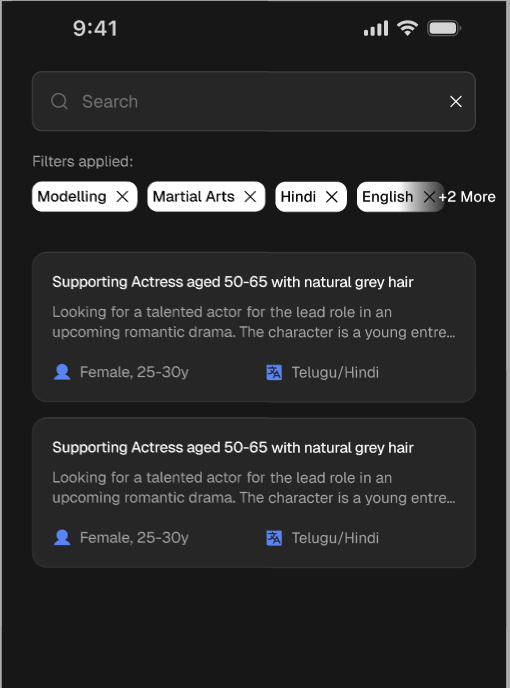
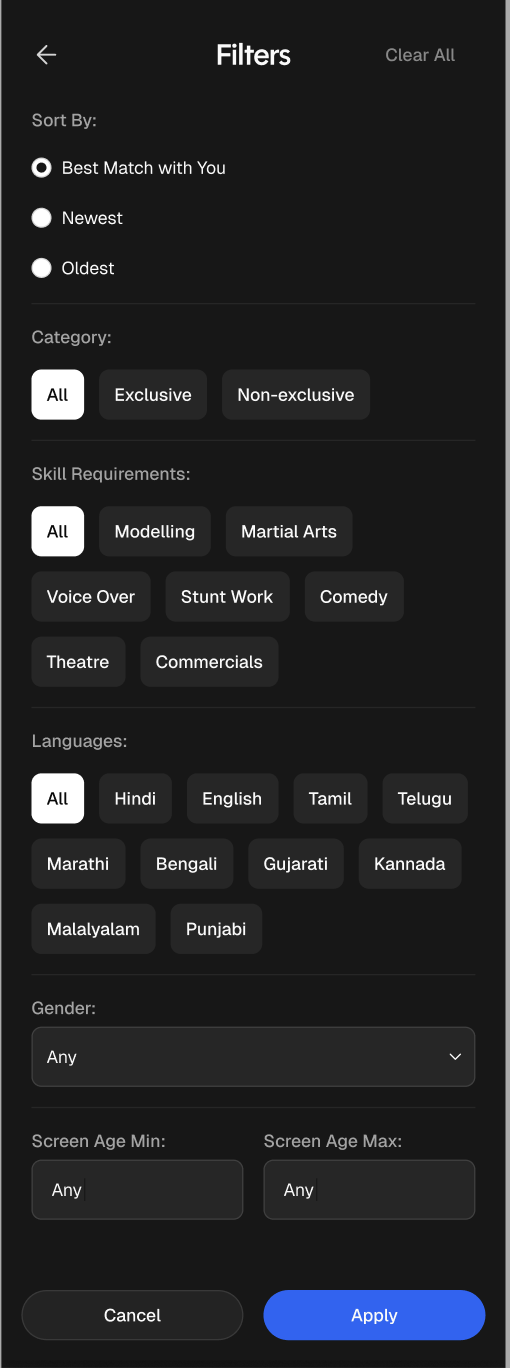
To only view specific projects and roles on your Home Feed, select the Filter Icon

On the following page, select options from the Category type, Skill Requirements, Languages, as well as Gender and Age Rage. Select "Apply" to generate results for roles or projects you're looking for.
What Does the "Urgent" Label Mean on a Role?
Seeing the Urgent label on a role? Here's what it means:
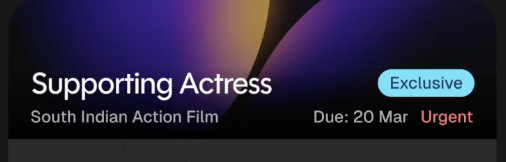
This label appears on any role that Casting has marked as needing submissions right away.
OR the role has less than 4 days left in the submission window.
If you see this label, time is of the essence — get that submission in!